
Getting Started
Overview
Spck CLI is a command-line tool that connects your local development environment to the Spck Editor mobile app over a secure WebSocket connection. Once running, you can browse and edit local files, run terminal commands, and preview local servers — all from your phone or tablet.
Requirements
Required
- Node.js: 18.0.0 or higher
- Spck Editor Account: Free account (30 min/day) or Premium subscription (unlimited)
- Spck Editor Mobile App: Android or iOS
Optional (Recommended)
- Git: 2.20.0+ for git integration features
- ripgrep: 15.0.0+ for dramatically faster file search (100x improvement)
Installation
Option 1: Run with npx (No Installation)
npx spck
Always uses the latest version — perfect for first-time setup or occasional use.
Option 2: Global Installation
npm install -g spck
spck
Faster startup, works offline, and convenient for daily use.
Demo
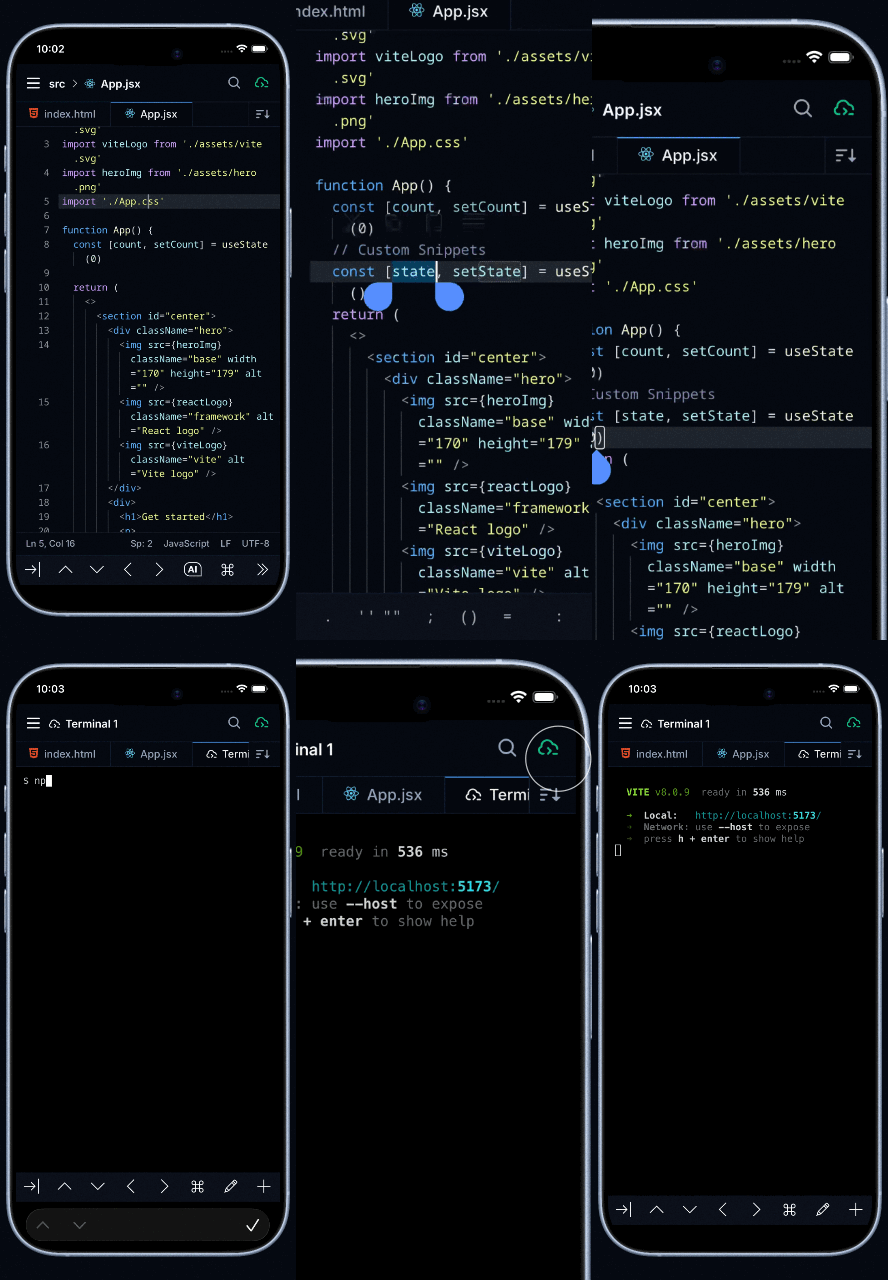
A short walkthrough of connecting Spck CLI to the mobile app and editing local files remotely:
First-Time Setup
When you first run the CLI, an interactive setup wizard guides you through:
1. Authentication
spck
# Press ENTER to open browser
# Sign in with your Spck Editor account
# Authorize the CLI
# Return to terminal
Credentials are stored in ~/.spck-editor/.credentials.json and persist across sessions.
2. Project Configuration
The wizard will configure:
- Root directory: Base directory for file access (default: current directory)
- Project name: Display name in the mobile app (default: directory name)
3. Git Integration (Optional)
If a .gitignore file is detected, the CLI offers to add .spck-editor/ to prevent committing secrets:
Add .spck-editor/ to .gitignore? (Y/n)
Recommendation: Choose Y to protect connection credentials.
Re-run Setup
To reconfigure at any time:
spck --setup
Connecting to Spck Editor
Once the CLI is running, it displays a QR code and connection details.
Method 1: QR Code (Recommended)
IMPORTANT: Install Spck Editor app BEFORE scanning the QR code.
On Android:
- Use Camera app or Quick Settings QR scanner
- When detected, tap the notification to open Spck Editor
- App automatically connects
💡 Note: Some QR code scanners cannot handle the custom scheme to open Spck Editor directly. Copy the URL and paste it in Chrome, which will launch Spck Editor from the URL.
On iOS:
- Use Camera app or Control Center QR scanner
- When detected, tap the notification to open Spck Editor
- App automatically connects
💡 Note: Spck Editor does NOT have a built-in QR scanner. Use your device's native QR capability.
Method 2: Manual Entry
If the QR code doesn't work:
- Open Spck Editor → Projects → New Project → Link Remote Server
- Enter the Client ID and Secret shown in the terminal
- Tap Connect
Next Steps
- Understand the relay system: Learn how the CLI routes traffic and how to choose a server — see CLI Reference
- Configure your setup: Adjust terminal, security, and filesystem settings — see Configuration
- Drive a local AI agent from your phone: Run Claude Code, Codex, or Gemini CLI through Spck Editor's AI Chat using your own subscription — see AI Coding Agents on Mobile (ACP)
- Explore power features: CLI commands, multiple projects, and mobile prompt tips — see Advanced Usage
- Transfer files between devices: Copy projects between your phone and desktop wirelessly — see File Transfer
- Keep sessions alive: Share sessions across devices with tmux — see Using Tmux